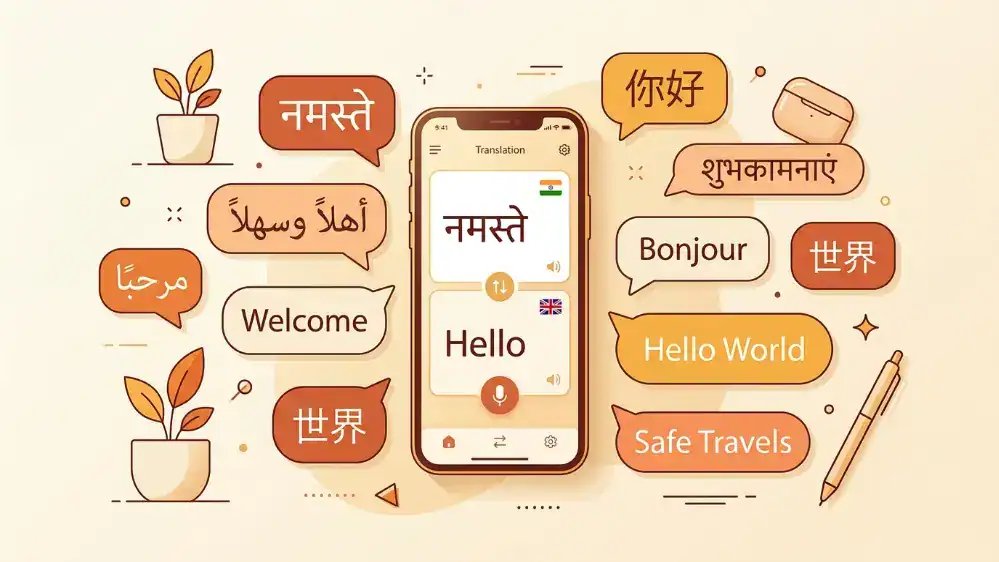
Typing takes time, and in a real conversation, time is exactly what you don’t have. The voice feature inside Google Translate voice app lets you speak naturally and get a spoken or written translation back within seconds. This guide covers how the voice feature works and how to get the most out of it. If you’re new to the app overall, our complete setup guide is worth reading first.
How Voice Translation Works
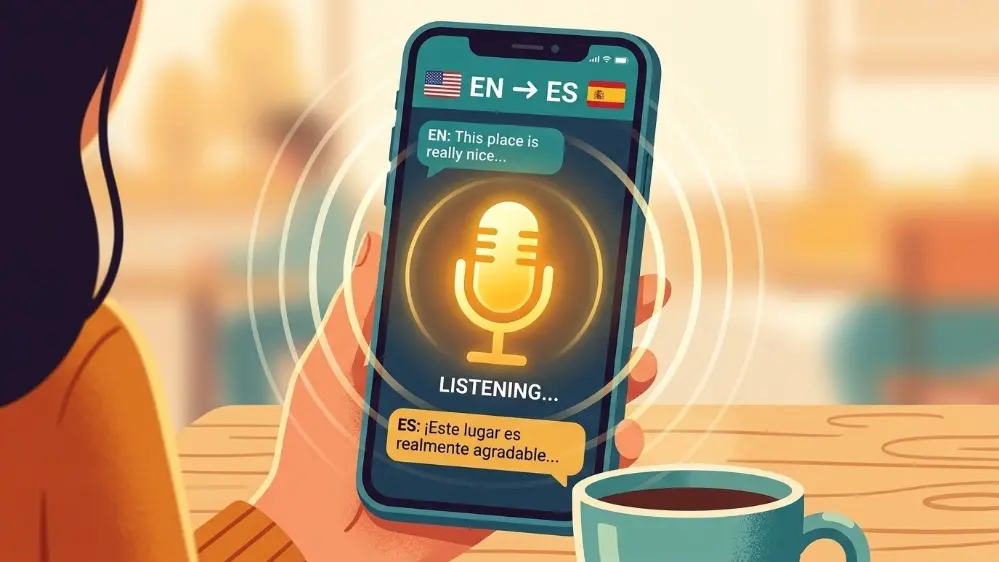
Tap the microphone icon on the main screen and start speaking. The app transcribes your speech, translates it, and then reads the translation out loud in the target language, while also showing it as text on screen. This makes it useful both for people who can read the target language and people who can only understand it when spoken aloud.
The transcription step happens almost instantly for clear speech in a quiet setting, though background noise, heavy accents, or fast talking can all slow down or slightly reduce the accuracy of the initial transcription before translation even begins. Since the whole process depends on getting that first transcription right, a clean audio input matters more than people usually assume.
Using Conversation Mode
For back-and-forth conversations, tap the two-microphone icon instead of the single mic. This puts the app into conversation mode, where it automatically detects which of the two selected languages is being spoken and translates accordingly, without you needing to tap anything between turns.
It’s the closest thing to having a live interpreter sitting between you and the other person. Place the phone on a flat surface between both speakers, face up, and let each person speak naturally when it’s their turn. The app displays both the original and translated text on screen, which helps if one person can read the other’s language even if they can’t fully follow the spoken version.
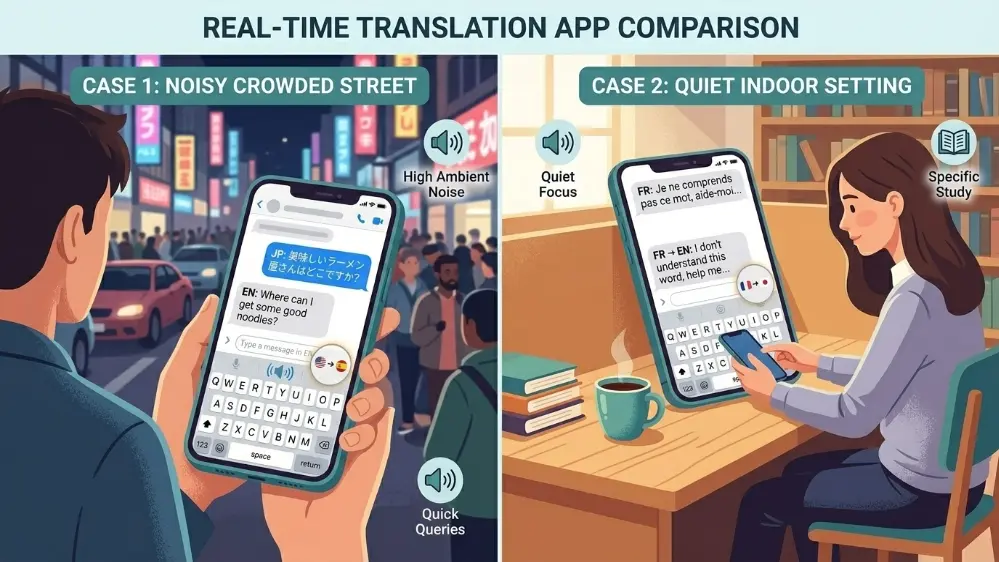
Conversation mode works best in reasonably quiet settings. In a loud restaurant or busy street, the app can sometimes struggle to tell where one person’s sentence ends and the other’s begins, so finding a slightly quieter corner makes a real difference in how smoothly the exchange goes.
Google Translate Keyboard Integration
Beyond the standalone app, there’s also a keyboard integration feature built directly into your phone’s keyboard settings on Android. Once enabled, you get a small translate button right above your regular keyboard inside any app, letting you type in your language and have it auto-translate before sending, without ever opening the main Translate app separately.
This is particularly useful for messaging apps where you’re having an ongoing text conversation with someone in another language. Rather than switching back and forth between two apps for every single message, the keyboard integration keeps everything inside the conversation thread itself. Setting this up takes a few minutes through your phone’s language and input settings, and it’s worth doing once if you message internationally on a regular basis. Our full how-to guide covers the exact steps for turning this on alongside every other input mode the app offers.

Using It as an English Translator Tool
For English speakers translating into other languages, the voice feature works as a straightforward two-way tool, handling both directions of a conversation smoothly once you’ve set your language pair. Accents and speaking speed can affect accuracy, so speaking a touch slower than normal, especially for less common language pairs, tends to produce noticeably cleaner results.
This also applies in reverse. If you’re trying to understand someone speaking English with a strong regional accent unfamiliar to the model, transcription accuracy can dip slightly, though it usually still gets the general meaning across even when a few individual words come out wrong.
Voice Settings Worth Adjusting
Inside the app settings, you can adjust voice input sensitivity and choose whether translations are read aloud automatically or only on request. If you’re using the app in a quiet setting like a library or a meeting, switching off auto-read and relying on the text output alone avoids drawing attention to yourself with the phone speaking out loud unexpectedly.
You can also adjust the speaking speed of the translated audio output in some versions of the app, which helps if you’re trying to follow along with pronunciation rather than just getting the gist of a translated sentence. Slower playback makes it easier to pick out individual sounds and words, which is useful if you’re using voice translation partly as a way to pick up some of the language yourself along the way.
Tips for Clearer Voice Translation
Background noise is the biggest enemy of accurate voice translation. Move to a quieter spot if you can, hold the phone closer to whoever is speaking, and pause briefly between sentences rather than speaking in one long continuous stream that the app has to break apart on its own.
Short, clear sentences translate far more reliably than long, rambling ones with multiple ideas strung together. If a translation comes out garbled or clearly wrong, try rephrasing what you said into two shorter sentences instead of one longer one, since this gives the transcription step a cleaner structure to work from.
Speaking directly toward the phone’s microphone, rather than at an angle or from across a room, also makes a noticeable difference, particularly on older phone models with less sensitive microphones.
Voice Translation for Indian Languages
Voice input tends to outperform typing for most Indian regional languages, mainly because typing in non-Latin scripts on a standard phone keyboard is slow and error-prone for the average user, while speaking naturally sidesteps that entirely. If you regularly translate between English and Hindi specifically, our English to Hindi walkthrough covers voice input tips unique to that pair, including common pronunciation issues that affect transcription accuracy.
For other regional languages like Marathi, Tamil, Malayalam, Kannada, and Odia, our broader guide on Google Translate for Indian languages goes into which languages currently handle voice input most reliably and which ones may need a slower, more deliberate speaking style for best results.
Using Voice Mode for Phone and Video Calls
Voice translation can help during phone or video calls with international contacts, though it takes a bit more setup than an in-person conversation. Put your call on speaker so the app’s microphone can pick up both sides clearly, and keep the phone positioned close enough to hear both you and the other speaker without the audio becoming muffled or distant.
This setup works reasonably well for casual coordination calls, but it’s not a smooth substitute for a real interpreter on anything important, since the slight delay between speaking and getting a translation back can make natural back-and-forth conversation feel stilted. For quick, low-stakes calls, it’s more than good enough to get the job done.
Common Voice Translation Problems
If the app consistently mishears what you’re saying, check that you’re speaking clearly and not too quickly, and confirm your microphone permissions are properly granted in your phone’s system settings rather than just inside the app. If the translated audio sounds robotic or unnatural, that’s a limitation of the text-to-speech engine itself rather than a translation accuracy issue, and it’s generally more noticeable in less commonly spoken languages with fewer voice samples available to train from.
If conversation mode keeps misidentifying which language is being spoken, try manually confirming the language pair rather than relying on automatic detection, particularly if the two languages you’re using share some similar sounds or loanwords.
Comparing Voice Translation Across Apps
Google Translate isn’t the only app with voice translation, though it remains one of the more polished implementations available for free. Microsoft Translator offers a comparable feature and actually edges ahead for multi-person group conversations, letting several people join a translated conversation from their own devices at once rather than relying on a single shared phone.
For one-on-one conversations, the difference between the major apps is fairly small in practice. Where Google Translate tends to pull ahead is language coverage, since its voice feature supports a wider range of languages overall, including several regional Indian languages that some competing apps don’t handle nearly as well. Our broader comparison of the best translation apps in 2026 breaks down voice performance across a few different options if you’re deciding what to keep installed.
Voice Translation in Noisy Public Places
Airports, markets, and busy streets are exactly where voice translation gets used most often, and also where it performs the worst due to constant background noise. A few practical adjustments help here. Cup your hand slightly around the bottom of the phone near the microphone to reduce wind noise outdoors, and try to angle your body to put your back to the loudest source of noise rather than facing it directly.
If a translation comes back clearly wrong in a noisy setting, don’t just repeat the same sentence louder. Move a few steps toward a quieter spot first, since raising your voice in already loud surroundings usually doesn’t help transcription accuracy as much as physically reducing the background noise does.
Voice Translation for Accessibility
Voice translation has a genuine use case beyond crossing language barriers between two spoken languages. For travelers or professionals who have difficulty typing due to a physical condition, using voice input as the primary way to interact with the app removes a real barrier that typing-based translation would otherwise create. Combined with the read-aloud feature for the translated output, the entire interaction can happen without needing to look at or touch the screen much at all, which is worth knowing about even outside a pure language-barrier context.
Building Better Habits Around Voice Translation
A few small habits make voice translation noticeably more reliable over time. Get into the practice of pausing briefly before you start speaking, since starting to talk the instant you tap the microphone sometimes clips the very first word or two before the app has fully activated. Similarly, wait a beat after finishing a sentence before tapping to speak again, rather than rapid-firing multiple short phrases back to back.
Testing your setup with a few practice phrases in a quiet room before you actually need the feature under pressure, like at an airport counter or during a work call, helps you understand how your specific phone’s microphone performs and adjust your speaking style accordingly ahead of time.
Frequently Asked Questions
Can I use voice translation completely offline?
Voice translation requires more processing power than text translation, so offline support is more limited. Basic offline voice translation is available for some languages once you’ve downloaded the relevant pack, but results are generally better with an active connection.
Why does the app sometimes mishear simple words?
Background noise, fast speech, and unclear pronunciation are the most common causes. Speaking slightly slower and pausing between sentences usually improves accuracy noticeably.
Does conversation mode work with more than two languages at once?
No, conversation mode is designed for exactly two languages at a time. For group conversations involving three or more languages, each pair would need to be handled separately.
Final Thoughts
Voice translation is where Google Translate feels less like a tool and more like an actual bridge between two people. Conversation mode in particular turns a language barrier into a minor inconvenience rather than a real obstacle, as long as you keep sentences short, speak clearly, and find a reasonably quiet spot to talk.