Google Translate is the app most people think of first when they need to translate something on the fly, and for good reason. It’s free, it works on almost every device, and it keeps adding features that make it more useful every year. This guide covers everything you need to know about getting it set up and using it properly, whether you’re on a phone, tablet, or computer.
If you’re comparing it against other options first, our roundup of the best translation apps in 2026 puts it side by side with Microsoft Translator, DeepL, and a few others so you can see where it actually stands out.

How to Download the Google Translate App
Getting the app installed takes less than a minute. On Android, open the Play Store, search for Google Translate, and tap install. On iPhone, the process is identical through the App Store, just search the name and tap get.
If you’re searching for a free download option outside the official stores, don’t bother. It’s already free, and third-party sites offering a “special” version are usually just trying to bundle in extra junk, or worse, malware disguised as an installer. Stick to the official app stores every time.
Once installed, opening the app for the first time asks you to pick your default source and target languages. You can change these anytime from the main screen, so don’t overthink this step. It’s just a starting point.
Google Translate for PC and Windows
A lot of people assume Google Translate is only a mobile thing, but there’s a full desktop experience too. You can use it directly through a browser at translate.google.com, which works identically to the app version and doesn’t require any installation at all.
If you specifically want a standalone program that runs outside the browser and can be pinned to your taskbar, Microsoft’s app store also lists a version built for Windows. It functions the same way as the browser version underneath, just wrapped in a desktop app shell for convenience. For most people, the browser version is simpler since there’s nothing to install or update.
The desktop version is particularly useful for translating longer documents, since typing and pasting large blocks of text is far easier on a full keyboard than a phone screen. If you regularly translate emails, reports, or written correspondence, bookmark the browser version and skip the app entirely on days you’re at your desk.
Getting the Google Translate App on Android
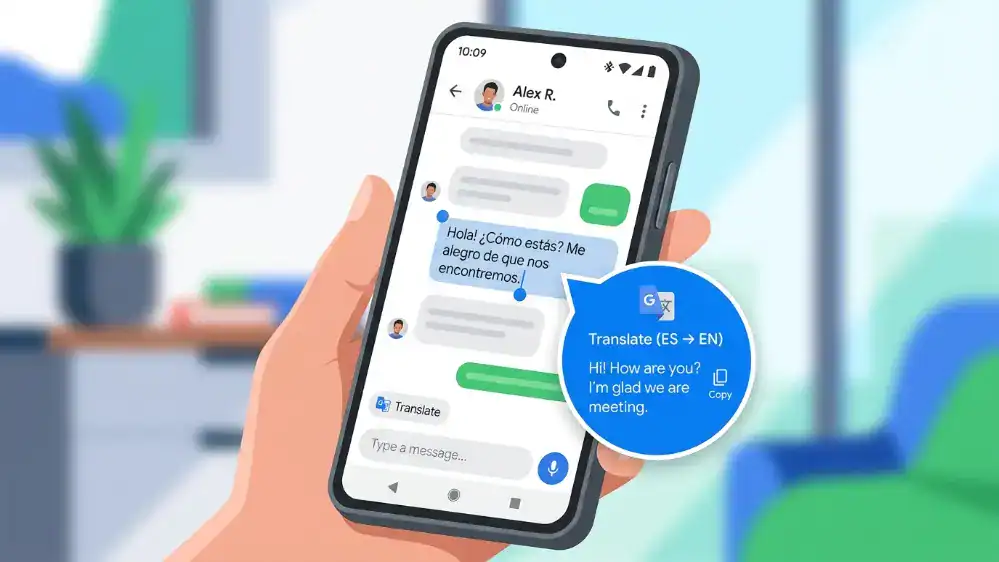
The Android version integrates directly with your keyboard once installed, letting you translate text in other apps without switching screens. This is genuinely one of the more underrated features, since it means you can be in the middle of a messaging app and translate incoming or outgoing text without losing your place in the conversation.
It also adds a floating translate button that appears when you copy text anywhere on your phone, which is a small feature that ends up saving a surprising amount of time. Copy a sentence from a webpage, a floating icon pops up, tap it, and you get an instant translation without ever opening the main app.
For step-by-step instructions on using every mode inside the app once it’s installed, from typing to camera to voice, our guide on how to use Google Translate breaks down each feature individually with more detail than we can cover in a general setup guide.
Using Google Translate Offline
One of the most requested features over the years has been offline support, and Google delivered it properly. Once you download a language pack inside the app settings, offline mode kicks in automatically whenever you lose signal, without any extra steps on your part.
This is the single most useful feature for travelers, since data roaming abroad is expensive and often unreliable in rural areas or on the subway. Go to Settings, then Offline Translation, and download whichever languages you’ll need before your trip starts. Language packs typically run between 30 and 45 megabytes each, so downloading five or six of them won’t put much of a dent in your phone’s storage.
Keep in mind that offline translations are slightly less polished than online ones, since the offline model has to be small enough to fit on your device. For everyday phrases this barely matters, but for anything nuanced, connect to wifi when you can for a better result.
Finding the APK Version
Some people search specifically for an APK file, usually because they’re on a device without direct Play Store access, like certain Android tablets or older devices running custom firmware. While APK files exist for Google Translate, downloading from unofficial sources carries real risk of malware bundled into the installer.
If you genuinely need the APK file, only get it from Google’s own APK mirror or a verified, well-known source like APKMirror, never a random third-party link that shows up in a search. A good rule of thumb is that if a site is offering a “premium” or “unlocked” version of a free app, it’s not legitimate. Google Translate has no paid tier to unlock in the first place.
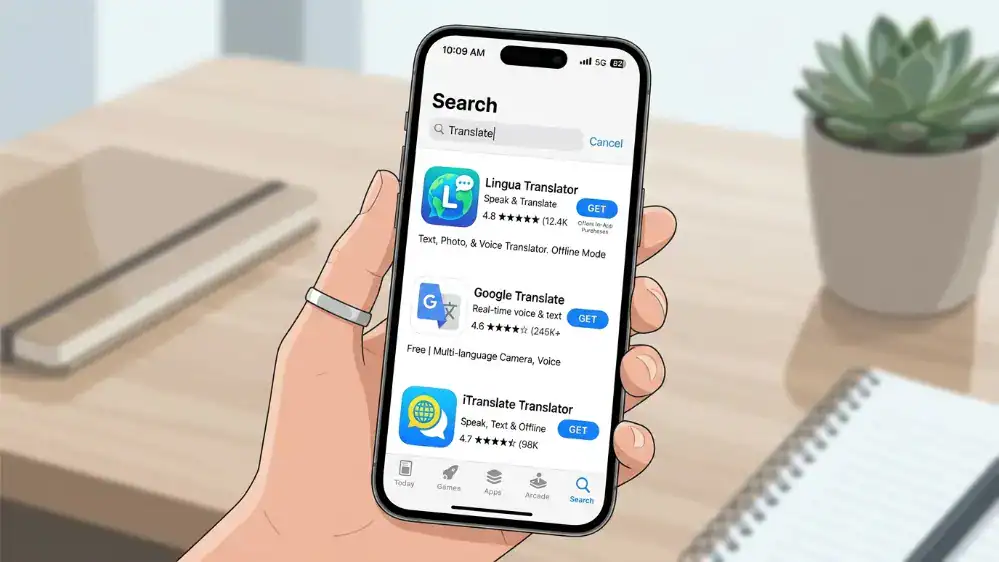
Google Translate on the App Store
Searching for the app on Apple devices works the same way as any other app. The listing on the App Store shows ratings, screenshots, and update history, which is worth checking before installing since Google pushes feature updates fairly often and it helps to know what’s new.
If you’re not sure whether you already have it installed, search the App Store directly rather than trying to remember. Apple devices sometimes bury less-used apps a few screens deep, so a fresh search is faster than scrolling through your home screens.
Recognizing the Google Translate App Icon and Logo
If you’re trying to spot the app among a cluttered home screen, the icon is a white “G” wrapped in a colorful circular design, distinct from Google’s main search app logo which uses the full multicolor “G.” The logo has stayed fairly consistent over the years, making it easy to recognize even after internal design updates change the interface.
This matters more than it sounds like it should, especially on shared family devices where multiple Google apps end up clustered together on one screen. Knowing the exact icon saves you from tapping the wrong app during a moment when you actually need a fast translation.
Using It Directly in Your Browser (Online Mode)
If you don’t want to install anything at all, the browser version through translate.google.com covers most of the same functionality, minus offline mode and some camera features that require the phone’s hardware. It’s a solid backup option if you’re on a shared or work computer where you can’t install apps freely due to company restrictions.
The browser version also supports drag-and-drop document translation directly on the page, letting you upload a Word file or PDF and get a translated version back without needing any software installed locally.
Settings Worth Adjusting Right Away
A few settings are worth changing the moment you install the app, rather than waiting until you run into a problem. First, set your two or three most commonly used language pairs as favorites so they appear at the top of the language selector instead of buried in a long alphabetical list.
Second, download offline packs for any language you might need even occasionally, since storage is cheap and the alternative is being stuck without a working translator when you actually need one. Third, check the input settings if you use voice translation often, since adjusting microphone sensitivity can noticeably improve accuracy in noisy environments, something we go into more detail on in our voice translation guide.
If you regularly translate between English and Hindi, it’s worth reading our dedicated English to Hindi walkthrough as well, since that language pair has a few quirks around script display and keyboard input that are worth knowing about upfront.
Common Setup Problems and Fixes
A few issues come up repeatedly for new users. If the app won’t detect your voice properly, check that microphone permissions are actually granted in your phone’s system settings, not just inside the app itself. If offline packs won’t download, make sure you have enough free storage and a stable connection, since interrupted downloads sometimes fail silently without a clear error message.
If translations seem oddly formal or oddly casual for the context, try rephrasing your input slightly. Short, clear sentences almost always translate better than long, complex ones with multiple clauses strung together.
New Features Worth Knowing About
Google keeps adding small improvements to the app that don’t always get announced loudly but change how usable it is day to day. Live transcription for longer speeches or lectures now runs smoother than it did a couple of years ago, letting you follow along with a translated transcript in near real time rather than waiting for the app to process chunks of audio.
The app has also gotten better at handling mixed-language input, where a sentence contains words from two different languages at once, something common in casual texting between bilingual speakers. Instead of choking on the mix, newer versions do a reasonable job picking out the intended meaning from context.
Interface translation has improved too. If you’re using an app or website that hasn’t been localized into your language, Google Translate can now overlay translations more cleanly onto buttons and menus without breaking the layout as often as it used to.
Google Translate vs the Built-In Apple Translate App
If you’re on iPhone, you technically have two translation apps available without installing anything extra, since Apple ships its own Translate app with iOS. The built-in option handles basic conversation translation well and works offline once you download the needed languages, but its language list is noticeably smaller than Google’s, and it lacks some of the extra input methods Google has refined over the years.
For most iPhone users, keeping both installed makes sense. Use Apple’s version for quick, simple exchanges since it’s already on your phone with zero setup, and switch to Google Translate for anything involving camera translation, less common languages, or offline packs for regions outside the usual set Apple supports well.
Managing Storage and Data Usage
Language packs and cached translations do take up some space over time, though nowhere near as much as a typical mobile game or streaming app. If storage is tight on your device, go into the app’s settings and review which offline packs you’ve downloaded, removing any for languages you’re no longer using regularly.
Data usage is minimal for text translation, since you’re only sending small amounts of text back and forth. Camera and voice translation use slightly more, particularly camera mode when scanning larger blocks of text, so if you’re on a limited data plan while traveling, lean on offline packs whenever possible rather than relying on a live connection for everything.
Frequently Asked Questions
Does Google Translate work without an internet connection?
Yes, as long as you’ve downloaded the relevant language pack ahead of time through the offline translation settings.
Is there a paid version of Google Translate?
No. The app is completely free with no premium tier, no subscription, and no ads. Any site claiming to sell a paid or unlocked version is not legitimate.
Can I use Google Translate to translate an entire webpage?
Yes, through the Chrome browser on desktop or mobile, right click or tap the menu and select translate page, and the entire page content gets translated in place while keeping the original layout intact.
Why does the app sometimes give a different translation for the same sentence?
The underlying AI model considers surrounding context, so minor differences in phrasing, punctuation, or even app updates can shift the output slightly between attempts.
Final Thoughts
The Google Translate app has become the default tool for a reason. It’s free, it works across every major platform, and the offline mode alone makes it worth keeping installed even if you rarely travel. Set up your offline language packs now so you’re not scrambling for signal the next time you actually need one, and take a few minutes to explore the settings menu since most of what makes the app genuinely useful is tucked away there rather than on the main screen.